Show how jewelry looks when it is worn.
Flat jewelry photos help shoppers inspect details. On-model photos help them understand scale, neckline placement, warmth, and styling. CraftShot creates worn jewelry scenes from the real product photo you upload.
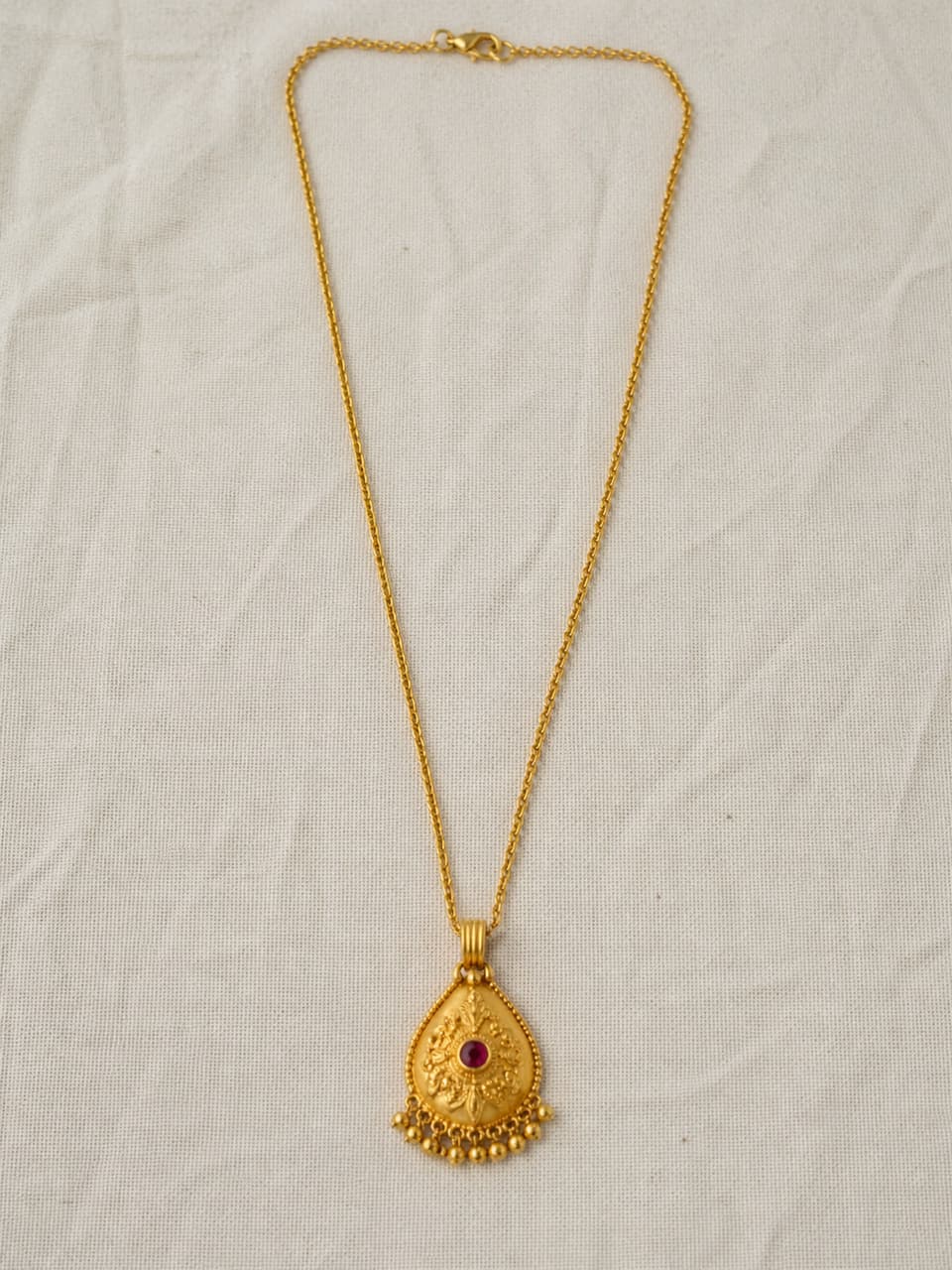
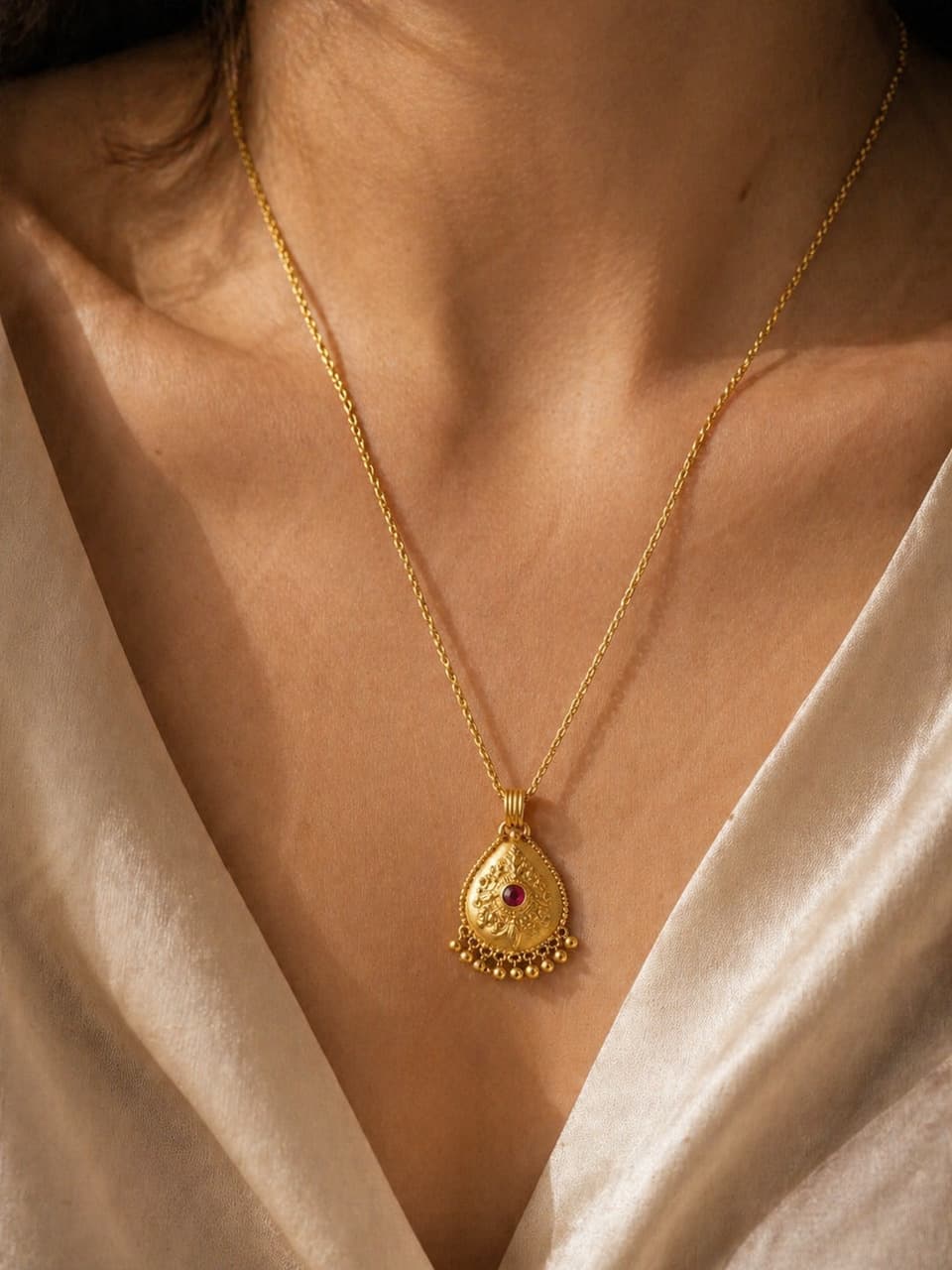
The goal is not to invent a new necklace. The goal is to help shoppers imagine the same necklace on a person.
Why on-model jewelry images convert differently.
A worn scene answers practical questions a flat-lay cannot answer by itself.
Scale
Shoppers can understand pendant size, chain length, and how the piece sits near the neckline.
Styling
Soft fabric, skin-tone warmth, and daylight create a more relatable purchase context.
Confidence
Pairing a flat detail shot with an on-model shot helps shoppers feel the product is real and wearable.
Use worn styling as one part of the listing set.
On-model images are strongest when they sit beside clean product photos, not instead of them.
Start with a detail-safe source
Use a flat or close photo where the pendant and chain are clear enough to preserve.
Generate worn styling
Choose the Jewelry worn style to create a skin-tone, silk, or daylight scene around the item.
Pair it with inspection images
Use clean listing and detail images for accuracy, then use the on-model image for imagination.
On-model review checklist
On-model jewelry questions
Is on-model the same as a virtual try-on?
No. CraftShot creates product styling images for listings and marketing. It is not a precise sizing or fit simulator.
Should I use on-model photos as my only jewelry image?
Usually no. Use them with a clean listing photo and a detail image so shoppers can inspect the actual piece.
What products work best?
Necklaces, pendants, charms, and some earrings work especially well when the source image clearly shows the jewelry shape and material.
Related use cases
Add a worn jewelry scene to your listing set.
Give shoppers the inspection photo and the styling context, without arranging a full model shoot for every piece.
Create on-model photos